If your Nest Thermostat Energy Dashboard is not working, check the thermostat's power status, confirm its Wi-Fi connection strength, and verify your Google account sync. Usually, failures in any of these cause data to stop updating on the dashboard.
On this page
- Quick recap
- Why the Energy Dashboard stops updating
- How to check thermostat power status
- How to check thermostat Wi-Fi network status
- Steps to refresh or resync the Energy Dashboard
- When to consider professional help or replacement parts
- Nest Thermostat energy dashboard not working: summary of 3 key checks
- Quick questions
Part of our guide on how to monitor home energy usage
Quick facts
- Dashboard refresh interval
- Usually 1-2 hours
- Wi-Fi requirement
- 2.4 GHz or 5 GHz band
- Thermostat power type
- 24VAC common required
- Typical lost data cause
- Power or network issue
- Good Wi-Fi signal
- -65 dBm or higher
Quick recap
- Confirm thermostat has continuous power; low or interrupted power disables data tracking.
- Check Wi-Fi strength at thermostat; weak or lost connection stops data upload.
- Resync Google account in the Nest app to fix cloud dashboard updates.
- Energy Dashboard stops updating if power or network issues persist over 24-48 hours.
- A basic Wi-Fi tester helps verify connectivity at the thermostat location.
Why the Energy Dashboard stops updating
The Nest Thermostat Energy Dashboard depends on continuous power, stable Wi-Fi, and cloud account sync to collect and display energy data. Any interruption to these three typically halts data updates on the dashboard.
Power issues include a faulty common wire or transformer supplying less than about 20-24 volts AC, which causes the thermostat to reboot or lose tracking. Network interruptions occur when the thermostat loses Wi-Fi for more than a few hours. Account sync problems emerge if the Nest app loses connection to your Google account, blocking data upload to the cloud.
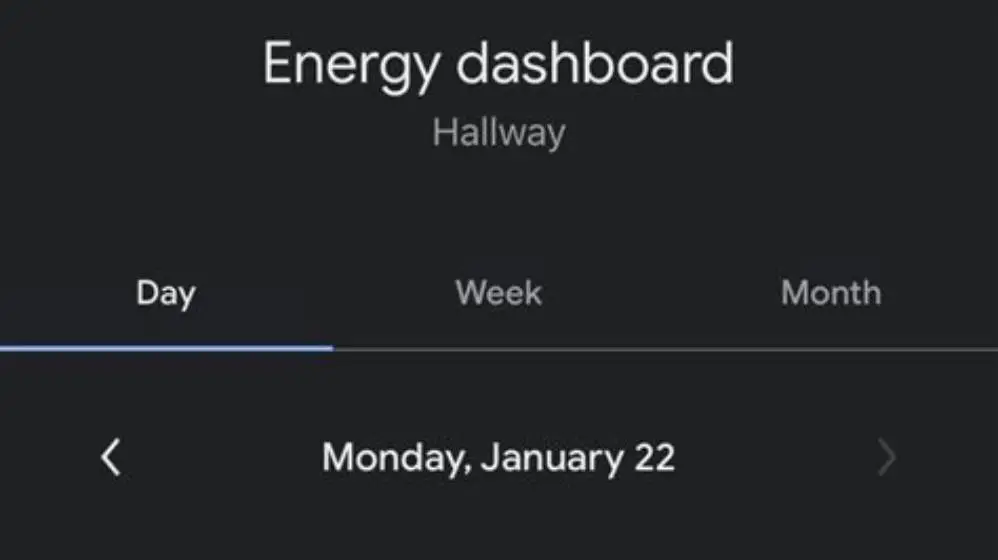
Data usually stops updating after 24-48 hours of an issue but can vary depending on refresh frequency and network conditions. You can tell if the dashboard is not updating by checking for a blank or old energy graph in the Nest app or on the web dashboard.
How to check thermostat power status
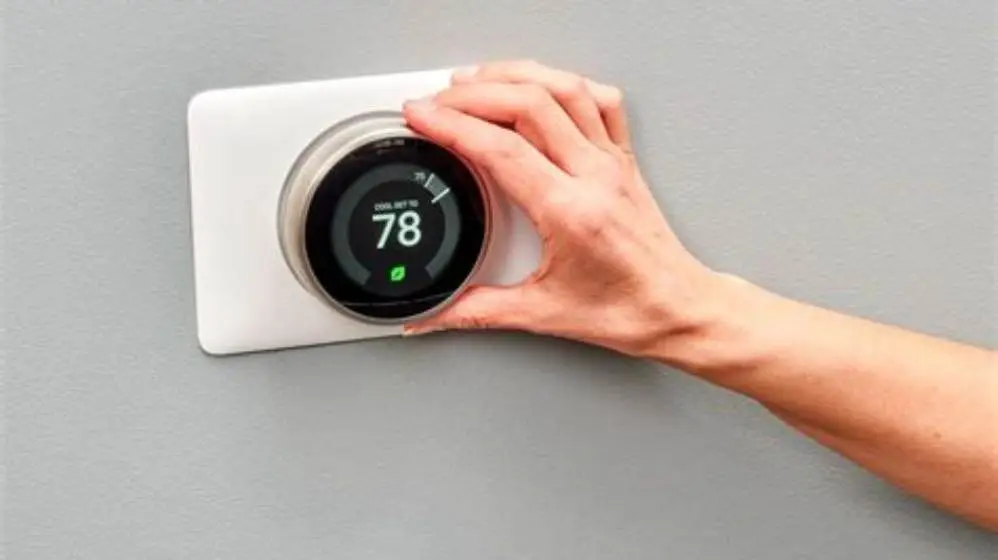
Start by verifying the Nest thermostat receives stable power. The thermostat requires a steady 24 volts AC from the heating system's common wire (C-wire). If the C-wire is missing or faulty, the device may power-cycle or shut down its advanced functions including energy tracking. If that sounds like your situation, read up on losing kWh history on restart next.
You can see signs of power problems if the thermostat screen goes blank, flickers, or the device reboots frequently. The Nest app may also notify of low battery or power issues.
To verify voltage, use a multimeter set to AC volts and measure between the R terminal and the C terminal on the Nest base. A reading between 20 and 26 volts AC indicates adequate power under normal HVAC operation. Below 20 volts is likely insufficient.
If power is lacking, adding a C-wire or professional power extender kit is necessary to restore full dashboard functionality. We go through smart thermostat setup guide step by step elsewhere on the site.

How to check thermostat Wi-Fi network status
The Nest Thermostat uploads energy data to the cloud over your home Wi-Fi. Confirm the thermostat is connected to your network with a stable signal strength better than -70 dBm (decibels relative to milliwatts).
Check connection status on the thermostat by going to Settings > Network. If it says 'Connected' but the connection quality is poor, the Energy Dashboard may stop updating or delay data uploads.
Using a Wi-Fi signal meter app on a smartphone or a dedicated Wi-Fi tester near the thermostat location helps measure signal strength accurately. Some Wi-Fi extenders or mesh nodes might be necessary if the signal is weak. We cover ev charger submetering method in its own article.
If the thermostat drops Wi-Fi repeatedly, reboot your router, ensure no MAC filtering blocks the device, and verify your network password has not changed recently.

Steps to refresh or resync the Energy Dashboard
Sometimes the Energy Dashboard stops updating due to cloud sync problems between your Nest device and Google account. You can try refreshing this manually.
First, open the Nest app and check the account status. If logged out or showing errors, sign out and sign back in to refresh the token. People in this spot often ask about removing trapped air in radiators as well.
Next, reboot the thermostat by going to Settings > Reset > Restart. After the thermostat reboots, wait up to 2 hours for data to start flowing again.
If problems persist, remove the thermostat from your Nest account and add it again. This re-establishes the cloud link but will temporarily erase stored data.
Make sure your phone or tablet running the Nest app is updated to the latest version to avoid compatibility issues. People in this spot often ask about adjusting the logging frequency as well.
- Open Nest app and verify account sign-in status
- Log out and back into your Google account if needed
- Restart thermostat from its settings menu
- Wait 1-2 hours for data to refresh
- Remove and re-add thermostat in app if problem continues
When to consider professional help or replacement parts
If after checking power, Wi-Fi, and account sync your Energy Dashboard still does not show data, the problem may be hardware related. Faulty wiring, a failing thermostat board, or wiring incompatibility with your heating system could be the cause.
Professional HVAC or electrician help is recommended to test and fix wiring issues or install a C-wire power adapter if missing.
If your Nest thermostat is out of warranty and not powering properly despite correct wiring, replacing the device might be necessary.
Before buying a replacement, verify the model compatibility with your home heating and cooling system. Some older systems require special adapters or models.
Consider a Wi-Fi tester device at this stage to definitively confirm network signals are strong and stable at the thermostat position.
Nest Thermostat energy dashboard not working: summary of 3 key checks
The three critical checks for when the Nest Thermostat Energy Dashboard is not working are: power supply, Wi-Fi connection, and Google account sync status. Each must be verified to isolate the cause of no data display.
Start by measuring 20-26VAC between R and C terminals to confirm power. Next, measure Wi-Fi signal strength at the thermostat; weaker than -70 dBm usually disrupts data uploads. Ensure the Nest app shows your Google account is connected and resync if needed.
Failing any one of these checks means the dashboard data will stop updating. Usually, the problem is power or Wi-Fi related, which you can test yourself with a multimeter and a Wi-Fi signal meter app. If problems continue, professional wiring help or device replacement may be necessary.
Following this sequence saves time and avoids unnecessary purchases, helping you get your Nest Energy Dashboard working reliably again.
| Check | What to examine | Expected range/condition | Tools needed |
|---|---|---|---|
| Power | Voltage at R-C terminals | 20-26 VAC under HVAC running | Multimeter AC volts |
| Wi-Fi | Signal strength at thermostat | Better than -70 dBm | Wi-Fi signal meter app or tester |
| Account sync | Nest app Google account status | Logged-in, no errors | Nest app on smartphone |
Accurate diagnosis of Energy Dashboard issues hinges on systematic power and network checks followed by app resync.
Quick questions
Why does my Nest Energy Dashboard show no data even though thermostat is on?
No data can result from power interruptions or weak Wi-Fi signal stopping uploads. Check your thermostat’s power supply and connection to Wi-Fi first.
How do I check if my Nest thermostat has stable power?
Use a multimeter on the thermostat base terminals R and C to measure AC voltage. A steady reading between 20 and 26 volts AC means power is stable.
Can poor Wi-Fi cause the Nest Energy Dashboard to freeze or not update?
Yes. Wi-Fi signal strength below about -70 dBm at the thermostat will delay or stop data uploads, causing the dashboard to freeze or show stale data.
What should I do if the Nest app won’t sync the Energy Dashboard data?
Try logging out and back into your Google account in the Nest app, then reboot the thermostat and wait a couple of hours for data refresh.
Is it possible to fix the Energy Dashboard myself or do I need a professional?
If the problem is power wiring or a missing C-wire, professional help is usually needed. Network and account issues can often be fixed by the homeowner.